
Autopilot – Computer Set Up
Transport Support — Self-service setup guide for computer replacements & refreshes
Overview
If you received a replacement computer (refresh) or a temporary loaner while your device is repaired, follow these guidelines to complete the Autopilot setup and ensure applications & drives are restored correctly. Recommended: use a wired network connection (Ethernet) during setup — large updates and app installations transfer faster and more reliably over a cable than Wi-Fi.

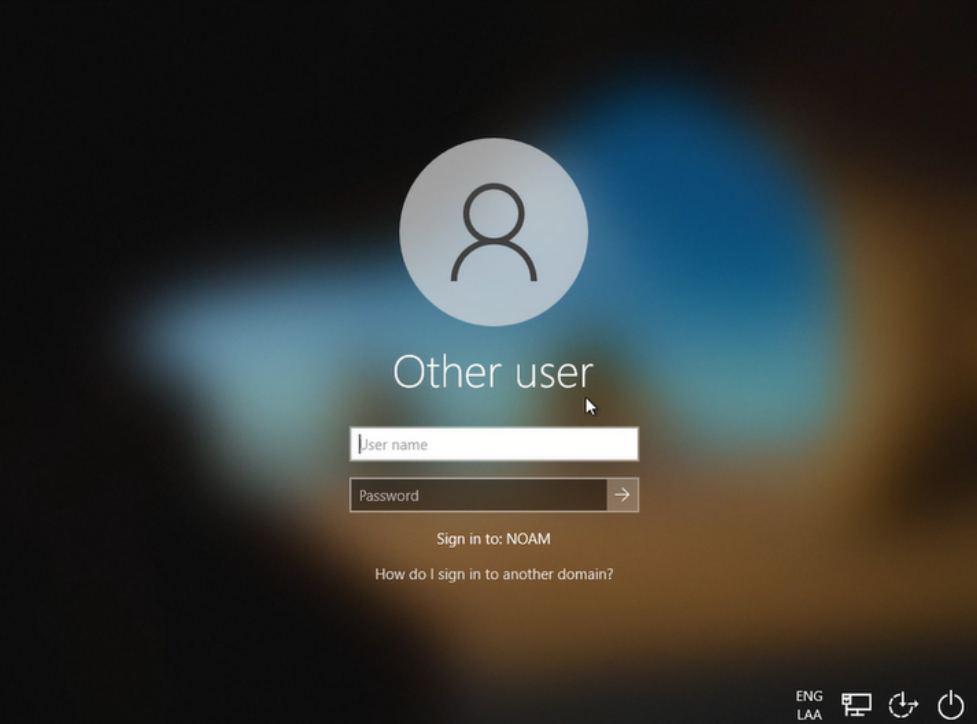
If the system prompts you to sign in, enter your Cemex credentials (email & password). If the password isn't immediately accepted, wait a few minutes to allow network configuration to complete, then retry sign-in.
Stage 1 | Computer Set Up
- Power on the computer.
- Confirm your region: United States.
- Connect to the network via network cable (recommended) or Wi-Fi.
- Confirm US keyboard layout.
- Type in your Cemex credentials (email and password).
- Wait for the PC to finish the setup (may take up to 20 minutes).
 Use the Start button to search for Software Center (it may take a few minutes to appear).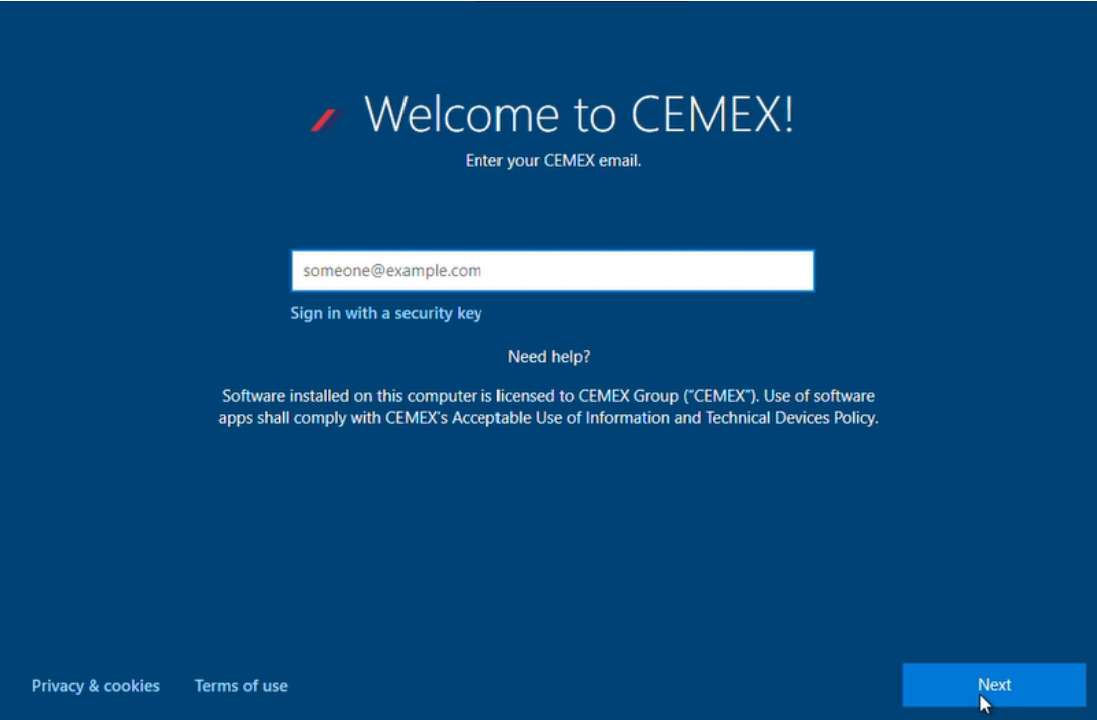
Important: If Software Center does not appear right away, wait a few minutes and try again — Autopilot may still be applying policies.
Stage 3 | Application Set up
When Software Center appears, search and install the required applications. If it still doesn't show up, continue to wait and try again.





Recommended installs (if required):
VPN: Cisco AnyConnect — use server vpn.cemex.com on first connect.
SAPGUI 7.70 Patch8: for SAP (SAP secure login client may be needed).
Optional: Google Chrome, Adobe Acrobat, Mozilla Firefox, etc.
Stage 4 | Drivers
In Software Center, install For HP Computers ONLY - Update HP BIOS & Drivers. Follow instructions and restart if prompted. Ensure AC power is connected.
For new Dell Latitude models, apply LoadMaster fix found in Software Center or consult article KB0018709 (Cemex ServiceNow).
Stage 5 | Microsoft setup
- Open Outlook and sign in with your Cemex email.
- Open Teams; accept updates if prompted.
- Open OneDrive and sign in.

Check if shared drives transferred automatically. If not, get the full network path from your old computer and contact support for remapping assistance. If you no longer have access, ask a coworker.

If you prefer assistance, contact Help Desk 24/7 at 844-432-3639. This guide is intended for users who want to perform the setup themselves — if it becomes overwhelming, call for support.
Document created by Transport Support. Last reviewed: September 26, 2025.